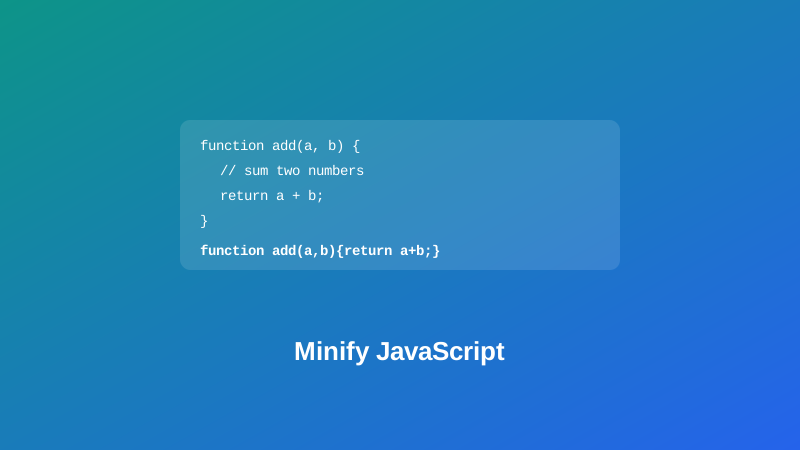
Pasting real, working JavaScript into an online minifier is a little nerve-wracking the first time. A careless one can merge two lines that needed to stay separate, mangle a regular expression, or strip something out of a string that looked like a comment but wasn't — and you don't always find out until something breaks in a way that's hard to trace back.
This guide covers what this minifier actually does to your code, and — since it's the reason a "simple" whitespace-stripping tool can silently break working JavaScript — the specific quirk in how the language handles line breaks that a careful minifier has to account for.
What This Minifier Actually Does
My PDF's JavaScript Minifier strips comments — both // line comments and /* */ block comments — and collapses unnecessary whitespace, shrinking the file without renaming anything or restructuring your code's logic. Paste in a generously commented, well-spaced script, and what comes back is functionally identical, just considerably smaller.
What makes this different from a basic find-and-replace approach is that it actually understands enough of JavaScript's structure to know what's safe to touch and what isn't — which matters far more than it might seem.
Why Naive Whitespace-Stripping Breaks Real JavaScript
This is worth understanding, because it's the exact reason a "just remove all the whitespace" minifier is dangerous rather than merely lazy.
JavaScript doesn't strictly require a semicolon at the end of every line. Under a set of rules called automatic semicolon insertion (ASI), the language inserts one for you at certain line breaks. Most of the time this is convenient and invisible — but it means a bare newline can genuinely change what your code does, not just how it looks.
Here's the classic example: return\nx — a return statement, followed by x on the next line — does not behave the same as return x written on one line. ASI inserts a semicolon immediately after return when it's followed by a line break, silently turning the statement into return; followed by an unreachable x — the function returns undefined and x is never even evaluated.
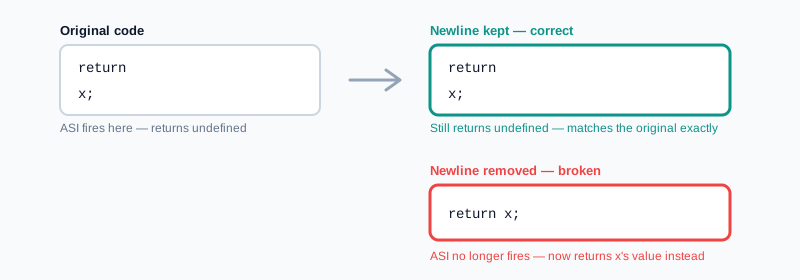
A minifier that naively strips every newline to save space can turn exactly this kind of working code into a silent bug. This tool avoids it with a simple, deliberate rule: when it collapses a run of whitespace that contains a line break, it replaces the whole run with a single newline — never removing it outright — so ASI keeps behaving in the minified output exactly as it did in your original code.
How It Protects Strings, Template Literals, and Regular Expressions
Comments, spacing, and sequences that merely look like comments can legitimately appear inside a string, a template literal, or a regular expression — and none of that content should ever be touched. A URL like "https://example.com" contains //, but it isn't a comment. A regex like /\/\*/ contains characters that look exactly like a block comment delimiter, but they aren't one.
This minifier tracks exactly when it's reading through a string or template literal (including backtick strings with ${} interpolation) and copies that content straight through, untouched. It also specifically distinguishes a / that starts a regular expression from a / that's a division operator, based on what character comes immediately before it — so a regex is never mistaken for two division signs, and nothing inside it gets stripped as if it were whitespace or a comment.
What Doesn't Happen: No Renaming, No Restructuring
Worth being upfront about scope, since it's easy to assume "minify" means every possible optimization. This tool doesn't rename variables or functions to shorter names, doesn't remove dead or unreachable code, and doesn't restructure your logic for extra compactness — the kinds of deeper transformations a full build-tool minifier like Terser or UglifyJS performs as part of an automated production build.
What it does is narrower and safer by design: strip comments, collapse whitespace without breaking ASI, and leave everything else — including your actual variable and function names — exactly as you wrote it. That makes it well suited to a quick manual pass, not a replacement for a proper build pipeline on a large production application.
How to Minify JavaScript, Step by Step
Step 1: Open the JavaScript Minifier
Go to My PDF's JavaScript Minifier. No installation or account needed.
Step 2: Paste Your Code
Any valid JavaScript works, including code with comments, strings, template literals, and regular expressions.
Step 3: Copy or Download the Result
The minified output is ready to copy directly into wherever it needs to go.
Practical Examples
Shrinking a small script before embedding it directly in an HTML page. A hand-written utility script with comments and generous spacing takes up more of the page than it needs to. Minifying it first, then pasting the result into a <script> tag, keeps the embedded page lean.
Preparing code for a character-limited environment. Some platforms — code snippet tools, certain CMS fields, character-capped submissions — genuinely benefit from stripping every unnecessary character before pasting code in.
Reducing a lightweight widget's footprint. A small embeddable script where a full build pipeline isn't set up still benefits from having its comments and whitespace stripped before it ships.
Confirming the tool is safe on real code first. Before relying on it for something that matters, paste in a snippet containing a URL string, a regular expression, and a multi-line template literal, and confirm all three come through correctly — a fast way to build confidence in how it handles the tricky cases.
Common Mistakes When Minifying JavaScript
Assuming this is equivalent to a full production build-tool minifier. It deliberately skips variable renaming and dead-code elimination — for a large application with an existing build pipeline, a dedicated tool like Terser can safely go further with full knowledge of your entire codebase.
Debugging the minified output instead of the original. Once code is minified, it's genuinely harder to read. Always keep your commented, readable source as the file you actually work in.
Assuming all whitespace is safe to strip in JavaScript generally. The ASI story above is exactly why that assumption is wrong — this tool handles it correctly, but it's a real reason to be cautious of simpler tools that don't.
Expecting comment removal alone to need a full minification pass. Stripping just comments is a smaller, gentler operation than full minification — this tool happens to do both together in one pass, which is convenient, but worth knowing if all you actually wanted was the comments gone.
Tips & Best Practices
- Keep your commented, readable source as your actual working file — minify only a copy right before it ships.
- Trust the tool with URLs, regex literals, and template strings — they're specifically protected, not accidentally corrupted.
- Pair with CSS Minifier and HTML Formatter when preparing a small front-end project's assets together.
- Use a dedicated build-tool minifier for large production applications, since it can safely rename variables and eliminate dead code with full context a standalone tool like this doesn't have.
- Test minified output the same way you'd test the original, especially around any code you're not fully confident is ASI-safe to begin with.
Key Takeaways
- This minifier strips comments and collapses unnecessary whitespace without renaming variables or restructuring your code's logic.
- Automatic semicolon insertion means a bare newline can change what JavaScript actually does — this tool preserves line breaks specifically to avoid breaking it.
- Strings, template literals, and regular expressions are tracked and copied through untouched, so URLs and regex patterns aren't mistaken for comments or whitespace.
- It's a safer, narrower tool than a full build-pipeline minifier — no renaming, no dead-code elimination — well suited to a quick manual pass.
- Keep your commented source as your actual working file, and minify only a copy right before it ships.
Related Reading
If you're preparing a full front-end project's assets, how to format and minify CSS covers the equivalent process for stylesheets, and how to format messy HTML covers the markup side of the same cleanup. For more guides like this one, browse the full blog or the complete tools directory.
Got a script to shrink down safely? Open the JavaScript Minifier and get your result in seconds.
Comments
Comments aren't open on the blog yet. In the meantime, share this article using the buttons above, or reach us directly at contact@mypdf.tech.