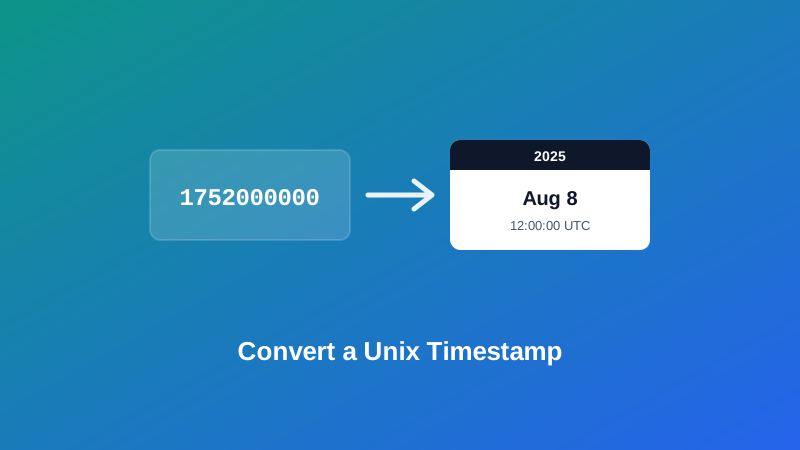
You're scrolling through an API response or a server log, and there it is: 1752000000. No day, no month, nothing a human reads at a glance — just a number sitting where a date should be. This is a Unix timestamp, and once you know how to read one, it stops being an obstacle and starts being genuinely useful, since it's actually a more reliable way to store a moment in time than a formatted date string is.
This guide covers what that number actually represents, how to convert it into something readable, why seconds and milliseconds trip up even experienced developers, and how to go the other direction — turning an ordinary date into a timestamp when a system asks for one.
What a Unix Timestamp Actually Is
A Unix timestamp (also called epoch time) is a count of seconds that have passed since a fixed starting point: midnight UTC on January 1st, 1970. That moment is called "the epoch," and every timestamp is simply how many seconds have ticked by since then. 1752000000, for instance, means 1,752,000,000 seconds after that starting point.
It looks unfriendly compared to a normal date, but that's exactly why computers use it. A single, ever-increasing number is trivial to compare, sort, and do arithmetic on — "which of these two events happened first" is just "which number is bigger" — without any of the ambiguity that comes with formatted dates, different calendar systems, or time zones baked into a string.
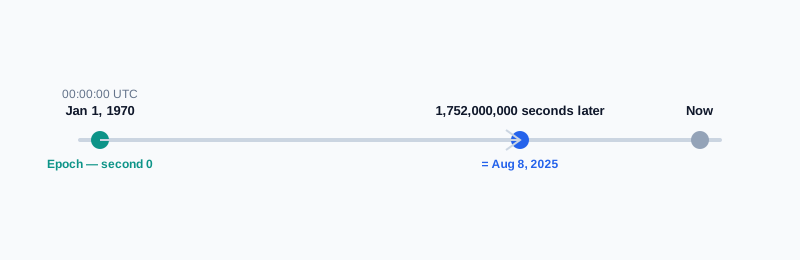
That's why timestamps show up constantly under the hood: in API responses, database rows, JWT tokens, cookie expiry values, log files, and file metadata. You're rarely meant to read one directly — you're meant to convert it, which is exactly what My PDF's Unix Time Converter does.
Seconds or Milliseconds? The Mix-Up That Catches Almost Everyone
Here's the part that causes more confusion than anything else about timestamps, so it's worth slowing down for. Unix time is defined in seconds, but a lot of software — JavaScript's own Date object among them — works in milliseconds instead. Mix the two up, and you get a date that's wildly wrong instead of an error you'd notice immediately.
There's a quick, reliable way to tell which one you're looking at, just by counting digits:
- 10 digits (for any date between 2001 and 2286) means you have seconds — for example,
1752000000. - 13 digits means you have milliseconds — the same moment written as
1752000000000.
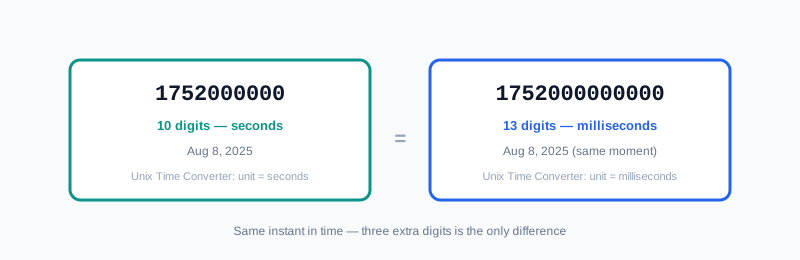
Unix Time Converter asks you directly which unit you're working with, via a simple dropdown, so there's no guessing involved once you know which one you've got. Timestamp Converter, covered next, actually applies this same digit-count logic automatically if you'd rather not check it yourself.
Two Related Tools, Two Slightly Different Jobs
It's worth knowing the difference between these before you start, since picking the right one saves a step:
| Tool | What you give it | What it's best for |
|---|---|---|
| Unix Time Converter | A Unix timestamp, plus its unit (seconds or milliseconds) | You already know you have a timestamp and just need it converted to a readable date |
| Timestamp Converter | Either a timestamp or a normal date | You're not sure what you're starting with, or you need to go the other way — a date into a timestamp |
Both run entirely in your browser — nothing is uploaded or sent to a server, which matters if the log line or API payload you're pasting in contains anything you'd rather not send anywhere.
How to Convert a Unix Timestamp to a Date, Step by Step
Step 1: Open the Unix Time Converter
Go to My PDF's Unix Time Converter. No installation or account needed.
Step 2: Paste in Your Timestamp
Copy the raw number from wherever you found it — an API response, a log line, a database export — and paste it into the input field. Strip out any surrounding punctuation first, like the quotation marks or trailing comma it might have carried over from a JSON payload.
Step 3: Select Seconds or Milliseconds
Use the digit-count trick above if you're not sure: 10 digits is seconds, 13 is milliseconds. Getting this one setting right is the whole ballgame — everything else updates instantly once it's correct.
Step 4: Read the Converted Date
The result updates live as you type, showing the same moment in several formats: ISO 8601, UTC, your browser's local time, and a plain-language relative description like "3 days ago."
Converting a Date Back Into a Unix Timestamp
Sometimes the problem runs the other way: a system wants a Unix timestamp, and all you have is an ordinary date. Timestamp Converter handles this too — type a date instead of a number, and it's recognized and converted automatically, giving you back both the seconds and milliseconds versions.
For this direction, it's worth typing the date in an unambiguous format rather than a shorthand one. 2026-03-04 is read the same way everywhere; 03/04/2026 genuinely isn't — depending on the convention someone's software assumes, that could mean March 4th or April 3rd. Typing the full ISO-style date removes the guesswork entirely.
Practical Examples
Debugging an API response. A response includes "expires_at": 1755302400 and you need to know if that's already passed. Paste it into Unix Time Converter with the unit set to seconds, and the relative field tells you immediately — "in 12 days," say — without any mental math.
Reading a JWT's expiry claim. JSON Web Tokens carry an exp field as a Unix timestamp in seconds, marking exactly when the token stops being valid. If you've already decoded the token's payload from Base64, the exp value is just a number sitting in that JSON — drop it into the converter to see the actual expiry date and time.
Making sense of a log file. Server logs often prefix each line with a raw epoch value instead of a formatted date, to keep entries compact and easy to sort. Converting one tells you exactly when an error actually happened in your own time zone, rather than in whatever the server's clock reports.
Scheduling something for a specific date. You need a system to run a job or expire a session at a precise future moment, and it wants a timestamp. Use Timestamp Converter in reverse: type the target date, copy the resulting seconds value, and paste that into the field the system is asking for.
Understanding the Converted Fields
Each conversion returns the same moment described four different ways, and each one serves a different purpose:
- ISO 8601 — a standardized, unambiguous text format (
2026-08-15T00:00:00.000Z) that's safe to store, log, or hand to another system without any risk of misreading. - UTC — the same moment in a plain "YYYY-MM-DD HH:MM:SS" layout, in Coordinated Universal Time — useful as a shared reference point that doesn't shift depending on who's looking at it.
- Your local time — the same moment translated into your browser's own time zone. This one is genuinely tied to your device, so a colleague opening the same timestamp elsewhere will see a different local time, even though the underlying moment is identical.
- Relative — a plain-language description like "2 hours ago" or "in 5 days," calculated against the current time the moment you view it.
Common Mistakes When Converting a Timestamp
Mixing up seconds and milliseconds. By far the most common issue — covered in detail above, and worth checking first whenever a converted date looks obviously wrong.
Assuming "local time" means the same thing for everyone. It reflects whoever's currently looking at the screen, not a fixed time zone. If you're sharing a converted date with someone else, share the UTC or ISO 8601 value instead, so it means the same thing on their end.
Pasting extra characters along with the number. Copying straight out of a JSON payload often drags along a trailing comma, quotation marks, or a key name. Strip the value down to just the digits before pasting it in.
Typing an ambiguous date when converting in reverse. 03/04/2026 isn't read the same way universally. Use a full, unambiguous format like 2026-03-04 when you're going from a date to a timestamp.
Treating the relative field as exact. "2 months ago" is a rounded approximation, not a precise day count — reach for the Date Difference Calculator when the exact number of days matters.
Forgetting timestamps can be negative. A negative value simply represents a moment before January 1st, 1970 — it's not invalid data, and both tools handle it correctly.
Tips & Best Practices
- Check the digit count before you convert anything. Ten digits means seconds, thirteen means milliseconds — this single check prevents almost every conversion mistake.
- Share UTC or ISO 8601, not "local time," with anyone else. It's the only version that means exactly the same thing regardless of where they're reading it.
- Strip stray punctuation from copied values. A quoted string or trailing comma from a JSON payload will cause a parse error if left in.
- Use Timestamp Converter when you're not sure what you're starting with. It reads either a date or a timestamp and figures out which one it's looking at.
- Reach for the Date Difference Calculator for exact day counts. The relative field here is a fast estimate, not a precise calendar calculation.
Key Takeaways
- A Unix timestamp counts seconds since midnight UTC on January 1st, 1970 — a compact, unambiguous way for computers to record a moment in time.
- Confusing seconds with milliseconds is the single most common conversion mistake — counting digits (10 versus 13) settles it in a second.
- Unix Time Converter is built for when you already know you have a timestamp; Timestamp Converter handles either direction automatically when you're not sure.
- Share UTC or ISO 8601 values with other people, since "local time" reflects the viewer's own device, not a fixed reference point.
- The relative field is a fast, rounded estimate — use the Date Difference Calculator when an exact day count actually matters.
Related Reading
If the number you're converting came out of a JSON API response, how to format and beautify JSON makes the surrounding payload easier to read. If it came from a decoded JWT, how to encode and decode Base64 covers pulling the token's payload apart in the first place. For more guides like this one, browse the full blog or the complete tools directory. For a deeper technical background on how epoch time works, see Wikipedia's entry on Unix time.
Got a raw timestamp to make sense of? Open the Unix Time Converter and see it as a real date in seconds.

Comments
Comments aren't open on the blog yet. In the meantime, share this article using the buttons above, or reach us directly at contact@mypdf.tech.