Most weak passwords aren't lazy — they're clever in a way that stopped working years ago. Swapping an "a" for an "@," appending "!1" to a memorized word, using a pet's name with the year tacked on: it feels like effort, but every one of those patterns is already baked into the wordlists that automated cracking tools try first. The gap between a password that feels secure and one that actually is comes down to something much simpler than cleverness.
This guide covers what genuinely makes a password strong, how a proper random generator actually builds one, and — since generating it is the easy part — what to actually do with it afterward so it doesn't end up on a sticky note under your keyboard.
What Makes a Password Actually Strong
A strong password is one an attacker has to guess through brute force, because there's no pattern, personal detail, or shortcut to exploit. That means it should be:
- Long. Length contributes more to strength than almost anything else — more on the math behind that shortly.
- Random. Not derived from a word, name, date, or keyboard pattern (
qwerty,1qaz2wsx) — genuine randomness, not a disguised pattern. - Unique per account. A password reused across multiple accounts means one breach anywhere becomes a breach everywhere it was reused.
- Free of personal information. Birthdays, pet names, and hometown streets are exactly the first things a targeted guessing attempt tries.
My PDF's Password Generator is built around exactly this: genuine randomness, at whatever length and character mix you choose, generated entirely in your browser.
Why Length Usually Matters More Than Complexity
Here's the part that's worth actually understanding, not just taking on faith, because it explains why a longer, simpler password often beats a shorter, more "complex" one.
Every character added to a password multiplies the number of possible combinations, rather than just adding to it. That's the core of it: length grows the guessing space exponentially, while adding more character types (numbers, symbols) only multiplies it by a comparatively small constant factor at any given length.
A few real, calculable examples make this concrete:
| Password style | Approximate possible combinations |
|---|---|
| A 4-digit PIN (numbers only) | 10,000 |
| An 8-character password (lowercase letters only) | About 209 billion |
| A 12-character password (mixed upper, lower, numbers, symbols) | Roughly 4.7 × 10²³ |
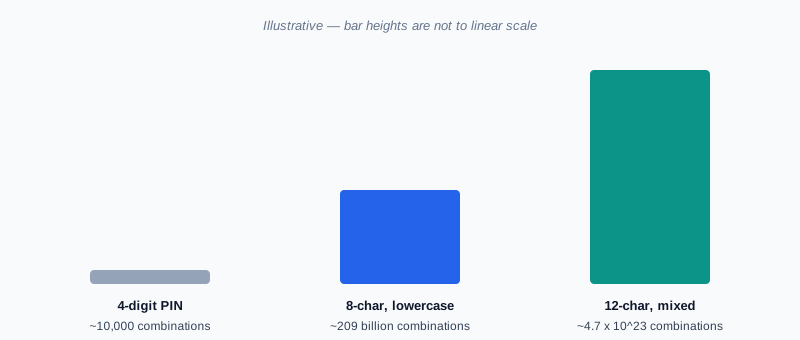
That last row isn't a typo — it's a 4 followed by 23 more digits' worth of possible combinations. The jump from 8 characters to 12 characters, even switching to a richer character set, doesn't just improve things modestly — it changes the scale of the problem entirely. This is why security guidance consistently leans toward "make it longer" over "make it trickier," and why a 16-character password using just letters and numbers is often more resistant to guessing than an 8-character one stuffed with symbols.
How This Password Generator Works
Password Generator creates passwords using your browser's Web Crypto API — the same class of cryptographically secure randomness used to generate encryption keys, not a simple pseudo-random function that could theoretically be predicted. Nothing about the process involves a server: the password is generated, displayed, and forgotten entirely on your device.
You control:
- Length, from 4 up to 128 characters.
- Character types, independently — uppercase letters, lowercase letters, numbers, and symbols.
- Ambiguous character exclusion, an option to leave out characters that are easy to misread or mistype, like a lowercase
l, uppercaseI, and the digit1, or the letterOand the digit0.
How to Generate a Strong Password, Step by Step
Step 1: Open the Password Generator
Go to My PDF's Password Generator. No account or installation needed.
Step 2: Set the Length and Character Types
Choose a length — 16 characters or more is a solid default for most accounts — and select which character types to include. For maximum strength, include all four types.
Step 3: Click "Generate Password"
A new, genuinely random password appears instantly.
Step 4: Copy It Straight Into a Password Manager
Don't try to memorize it or write it somewhere insecure — copy it directly into a password manager, where it's stored securely and can be retrieved whenever you need it.
A Practical Example: Setting Up a New Account the Right Way
Say you're creating a new account for an online service that handles something genuinely sensitive — a bank, a health portal, a work system.
- Open Password Generator and set the length to 20 characters, with all four character types enabled.
- Generate a password and copy it immediately.
- Paste it directly into the account's password field — never retype it from memory, which introduces both errors and a chance you'll shorten it to something "easier."
- Save it in your password manager under an entry for that specific account, so you never need to remember it yourself.
- If the account offers two-factor authentication, turn it on too — a strong password and a second factor together cover far more ground than either alone.
Common Password Mistakes (Even Among Careful People)
Reusing a password across accounts. This is the single most damaging habit, because one breached account effectively hands over every other account using the same password.
Relying on predictable substitutions. Swapping letters for lookalike symbols (@ for a, 3 for e) feels clever, but these substitutions are so common that automated guessing tools check for them by default — they add far less protection than people assume.
Appending a number or symbol to a memorized word. Summer2024! looks complex at a glance, but it's still fundamentally a dictionary word with a predictable suffix, which is exactly the pattern targeted guessing tools are built to try first.
Using personal information. Birthdays, pet names, and addresses are the first things tried in any targeted attempt — they should never appear in a password, generated or otherwise.
Choosing a short password even with full complexity. As the table above shows, a short password with every character type enabled still has a dramatically smaller guessing space than a long one — length is the more powerful lever.
Storing a generated password insecurely. A strong, randomly generated password loses most of its value if it ends up in an unencrypted note file or a sticky note on a monitor — use a password manager instead.
Passwords vs. Passphrases
A closely related approach worth knowing about is the passphrase — several random, unrelated words strung together (something like correct-horse-battery-staple, to borrow a well-known example) rather than a string of random characters. A passphrase can be just as strong as a random password at a comparable length, and it's sometimes easier for a person to type accurately, if not to memorize outright. My PDF's Passphrase Generator builds these the same way — genuinely randomly, not by picking common phrases. Either approach is sound; which one you reach for is mostly a matter of where you'll actually be typing it.
What to Do With a Password Once You've Generated It
Generating a strong password is the easy five seconds of this whole process — what happens next determines whether it actually protects anything.
- Store it in a password manager immediately. Don't rely on memory or a plain text file.
- Use it for exactly one account or purpose. A generated password's strength is wasted the moment it's reused somewhere else.
- If you're generating a password specifically to protect a document, see our guide to password-protecting a PDF for applying it correctly with Protect PDF — and note the same rule applies there: never send the password through the same channel as the file itself.
- Never share it over the same channel as whatever it protects. If you're sending a colleague a password-protected file, send the password by a different method than the file itself.
Tips & Best Practices
- Default to 16 characters or more, and go longer for anything genuinely sensitive.
- Enable all four character types when a system allows it — length is the priority, but variety still adds real protection on top of it.
- Only exclude ambiguous characters if you expect to type the password manually. Otherwise, leave them in — it slightly increases the character pool.
- Never reuse a generated password. Generate a fresh one for every account or document.
- Copy, don't retype. Typing a long random password from memory invites mistakes and the temptation to shorten it.
Key Takeaways
- Length matters more than clever substitutions — a longer, simpler password usually beats a shorter, "trickier" one.
- Genuine randomness, generated by a cryptographically secure process, avoids the predictable patterns automated guessing tools check for first.
- A strong password is only as useful as what happens next — store it in a password manager, never reuse it, and never send it through the same channel as whatever it protects.
- Passphrases are a legitimate alternative to random-character passwords, especially where manual typing accuracy matters.
- If you're generating a password to protect a document, Protect PDF is the natural next step — just don't forget it, since it can't be recovered later.
Related Reading
If you're generating a password specifically to secure a document, how to password-protect a PDF covers applying it correctly and choosing what to do afterward. For more guides like this one, browse the full blog or the complete tools directory. For deeper background on how password strength is actually measured, see Wikipedia's entry on password strength.
Ready to set up a new account or document the right way? Open the Password Generator and create a genuinely strong password in seconds.
Comments
Comments aren't open on the blog yet. In the meantime, share this article using the buttons above, or reach us directly at contact@mypdf.tech.