An API response comes back as one dense, unbroken line of text — brackets, quotes and commas all run together with no spacing to show where one object ends and the next begins. Pasting it into a formatter usually fixes that in half a second. Sometimes, though, it throws an error instead, and you're left staring at a wall of characters trying to spot one missing comma by eye.
This guide covers what a JSON formatter is actually doing when it works, why JSON shows up minified in the first place, and — since this is the part thin tool pages tend to skip — exactly what to look for when it doesn't format cleanly.
What a JSON Formatter Actually Does
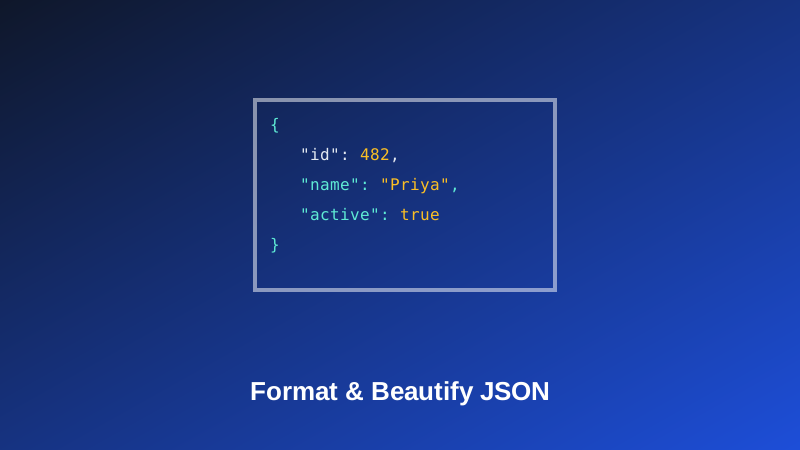
A JSON formatter takes minified or inconsistently indented JSON and rewrites it with clean, consistent spacing, so nested objects and arrays are easy to follow at a glance. My PDF's JSON Formatter does this using your browser's native JSON parser — the same engine your browser already relies on to handle JSON internally — so the result is exact and lossless. Only whitespace changes; every key, value, bracket and data type stays exactly as it was.
That last point is worth being clear about: formatting is purely cosmetic. It doesn't add, remove, or reinterpret anything in your data — it just adds the line breaks and indentation a person needs to actually read the structure, which a computer never needed in the first place.
Why JSON Gets Minified in the First Place
This is worth understanding, since it explains why you're looking at a wall of text to begin with rather than something wrong with the data itself. Whitespace — spaces, line breaks, indentation — makes JSON easier for a person to read, but it adds nothing a computer needs to parse the data correctly. APIs strip it out specifically to reduce the size of what gets transmitted, since every extra space is extra bytes sent over a network, multiplied across potentially millions of requests.
So a minified response isn't broken or unusual — it's JSON doing exactly what it's supposed to do for machine-to-machine communication. Formatting adds the human-readable layer back on top, purely for your own benefit while you inspect or debug it.
How to Format JSON, Step by Step
Step 1: Open the JSON Formatter
Go to My PDF's JSON Formatter. No account or installation needed.
Step 2: Paste Your JSON
Add the minified or messy JSON into the input box.
Step 3: Choose an Indent Size
Pick anywhere from 1 to 8 spaces, depending on your project's convention.
Step 4: Copy or Download the Result
Grab the formatted output with the Copy or Download button, ready to paste back into your code, a config file, or wherever you actually need it.
A Practical Example: Making Sense of a Minified API Response
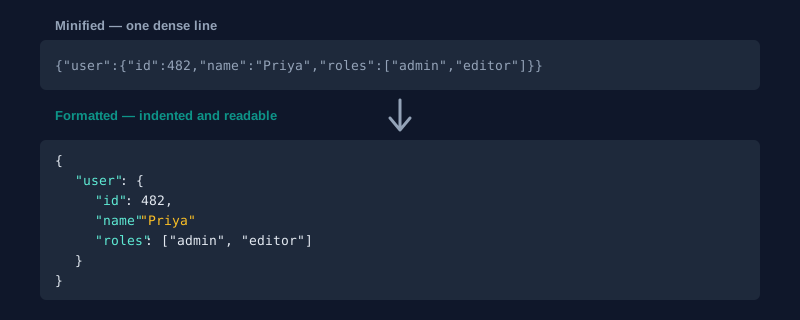
Say an API call returns something like this, all on one line:
{"user":{"id":482,"name":"Priya","roles":["admin","editor"],"active":true}}Pasted into JSON Formatter with a 2-space indent, it becomes:
{
  "user": {
    "id": 482,
    "name": "Priya",
    "roles": [
      "admin",
      "editor"
    ],
    "active": true
  }
}
Nothing about the actual data changed — but the nesting, which was genuinely difficult to trace by eye in the minified version, is now immediately obvious. That's the entire value of formatting: making structure visible without touching content.
When Formatting Fails: Understanding Common JSON Errors
This is the part most quick tool pages skip entirely, and it's usually the more useful half of the whole process. If formatting throws an error instead of a clean result, it's almost always one of these:
Trailing commas. JSON doesn't allow a comma after the last item in an object or array — {"a": 1, "b": 2,} is invalid because of that final comma, even though this exact pattern is often perfectly legal in JavaScript object literals, which is where the habit usually comes from.
Single quotes instead of double quotes. JSON requires double quotes around strings and keys, full stop. {'name': 'Priya'} is invalid JSON, even though it's valid JavaScript.
Unquoted keys. Every key in a JSON object needs to be a quoted string. {name: "Priya"} fails, because name isn't wrapped in quotes — again, something JavaScript allows that JSON doesn't.
Comments. JSON has no comment syntax at all — // like this or /* like this */ will always cause a parse failure, no matter where they appear in the file.
Mismatched or missing brackets. A missing closing } or ], or one closing the wrong kind of structure, is common in hand-edited JSON and can be genuinely hard to spot by eye in a long, deeply nested document.
Pasting a JavaScript variable assignment instead of pure JSON. Something like const data = {"id": 1} looks almost right, but the const data = part isn't valid JSON at all — only the object itself is.
Choosing an Indent Size
There's no single universally "correct" indent size, but a couple of conventions are common enough to be worth defaulting to:
- 2 spaces is the most widely used convention in web and JavaScript projects, and a reasonable default if you're not sure which your project follows.
- 4 spaces shows up more often in certain backend languages and configuration file conventions.
JSON Formatter supports any indent size from 1 to 8 spaces, so matching an existing project's specific style is straightforward — check a nearby file in the same project if you're ever unsure which one to pick.
JSON Formatter vs. JSON Validator vs. JSON Beautifier
These three sound almost interchangeable, and they overlap in places, but each has a slightly different job:
| Tool | What it's for |
|---|---|
| JSON Formatter | Reformat JSON into clean, readable indentation |
| JSON Validator | Pinpoint exactly what's wrong with JSON that won't parse |
| JSON Beautifier | Functionally the same as Formatter, with an added tab-indent option alongside numeric space counts |
If your JSON is already valid and just needs to look readable, Formatter (or Beautifier, if you specifically want tabs) does the job. If it's failing to format at all, Validator is the one built to tell you exactly why. And if you need the opposite — collapsing readable JSON back down for transmission — JSON Minifier strips the whitespace back out again.
Common Mistakes When Formatting JSON
Pasting a JavaScript object literal and expecting it to format as JSON. As covered above, JS object syntax allows several things JSON doesn't — unquoted keys, single quotes, trailing commas, comments. Valid JavaScript isn't automatically valid JSON.
Assuming formatting will "fix" broken JSON. Formatting only rearranges whitespace in already-valid JSON — it can't repair a syntax error. Use Validator first to find and fix the actual problem, then format the corrected result.
Committing formatted output with a mismatched indent style. Reformatting a file with a different indent size than the rest of a codebase uses can create a noisy diff with far more changed lines than your actual edit — check the project's existing convention first.
Not checking for sensitive data before pasting into an unfamiliar online tool. Worth knowing specifically that this tool formats entirely in your browser using the native JSON parser — nothing is uploaded or sent to a server, which matters if you're inspecting a real API payload rather than sample data.
Tips & Best Practices
- Default to 2-space indentation unless your project's existing files clearly use something else.
- Run through JSON Validator first if Formatter rejects your input, to get a precise description of what's actually wrong.
- Watch for JavaScript-isms — unquoted keys, single quotes, trailing commas and comments are all valid JS but invalid JSON.
- Match your project's existing indent convention before committing formatted output, to avoid an unnecessarily noisy diff.
- Keep sensitive payloads local. Formatting here never leaves your browser, which is worth remembering when you're debugging something that shouldn't be pasted into just any random web tool.
Key Takeaways
- Formatting is purely cosmetic — it adds readable spacing without changing any actual data, keys, or values.
- JSON gets minified in transit specifically to save bandwidth; formatting exists purely for human readability, not correctness.
- Trailing commas, single quotes, unquoted keys and comments are common causes of a formatting failure, since all four are valid JavaScript but invalid JSON.
- If formatting fails, JSON Validator is the better tool for pinpointing exactly what's wrong before you try again.
- Match your indent size to your project's existing convention, and keep in mind everything here happens locally in your browser.
Related Reading
If your JSON fails to format and you need to know exactly why, JSON Validator is built specifically for that. For more guides like this one, browse the full blog or the complete tools directory. For the official specification behind the format itself, see json.org.
Got messy or minified JSON to clean up? Open the JSON Formatter and get a readable result in seconds.

Comments
Comments aren't open on the blog yet. In the meantime, share this article using the buttons above, or reach us directly at contact@mypdf.tech.