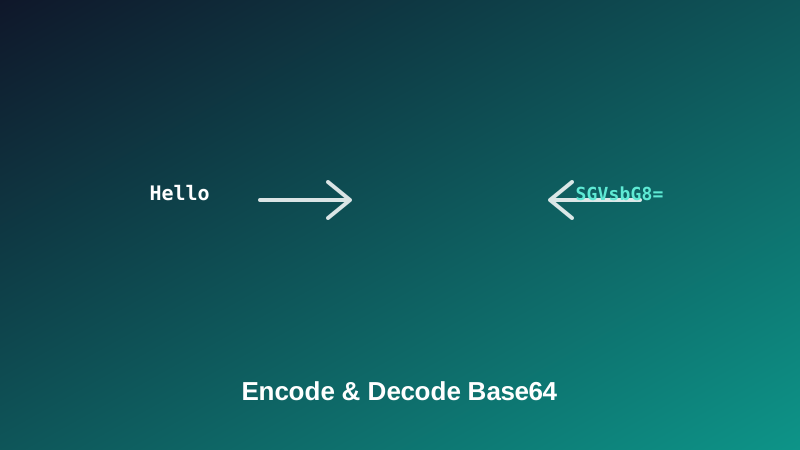
A string like SGVsbG8sIHdvcmxkIQ== looks encrypted. It isn't. It's Base64 — a way of representing ordinary text or binary data using a restricted set of 64 characters, and anyone who pastes it into a decoder gets the original content back in an instant, no password or key required. That distinction matters more than it might seem, especially the first time someone mistakes an API response's Base64 field for something actually protected.
This guide covers what Base64 is really doing under the hood, why it provides zero confidentiality despite looking scrambled, the difference between standard and URL-safe variants, and — since it's one of the most common real reasons people reach for a Base64 tool — how to read the payload sitting inside a JWT token.
What Base64 Actually Is
Base64 represents data using only 64 printable characters: uppercase A-Z, lowercase a-z, the digits 0-9, plus + and /. That specific alphabet was chosen because every one of those characters is safe to pass through systems that only reliably handle plain text — email, JSON fields, URLs, configuration files — without the character being misinterpreted or mangled along the way.
My PDF's Base64 Encoder and Base64 Decoder handle the two directions of this conversion, both entirely in your browser.
How Base64 Encoding Actually Works
This part is worth understanding rather than treating as a black box, since it explains a few things that otherwise seem arbitrary — like why encoded output is always a bit longer than the original, and where those trailing = characters come from.
Base64 works in groups of 3 bytes (24 bits) at a time, and rewrites each group as 4 characters, 6 bits per character. Since 6 bits gives exactly 64 possible values (2⁶ = 64), each 6-bit chunk maps directly onto one character in the Base64 alphabet.
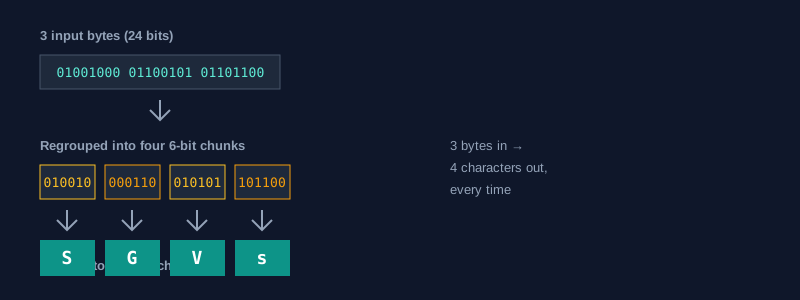
When the input isn't a clean multiple of 3 bytes, the last group gets padded, and the output ends with one or two = characters to signal exactly how much padding was added. That's all the trailing equals signs are — a bookkeeping marker, not part of the actual encoded data.
This mechanical, reversible process is also exactly why Base64 always makes text longer, roughly by a third — three input bytes become four output characters every time, without exception.
Base64 Is Not Encryption
This is worth stating plainly, because it's the single most common misunderstanding about Base64, and getting it wrong can have real consequences.
Base64 is an encoding, not encryption. Encoding is about representation — converting data into a different, more portable format, in a way that's fully reversible by design, with no secret required. Encryption is about confidentiality — scrambling data so that only someone with the correct key can read it back.
Take the string SGVsbG8=. Paste it into Base64 Decoder, or honestly, almost any Base64 tool on the internet, and it instantly becomes Hello. No password, no key, no special access — just the standard, publicly documented conversion rules running in reverse. That's true of any Base64 string, no matter how "scrambled" it looks at a glance.
Standard vs. URL-Safe Base64
Two of the 64 characters in the standard alphabet — + and / — have special meaning inside a URL, which causes problems if a Base64 string needs to travel inside one. URL-safe Base64 solves this with a simple substitution:
| Standard Base64 | URL-safe Base64 | |
|---|---|---|
| Character 62 | + | - |
| Character 63 | / | _ |
| Padding | Uses = | Often omitted entirely |
Base64 Encoder offers a URL-safe toggle for exactly this situation, and Base64 Decoder automatically recognizes and handles both variants, so you don't need to know in advance which one you're looking at.
How to Encode Text to Base64, Step by Step
Step 1: Open the Base64 Encoder
Go to My PDF's Base64 Encoder. No account or installation needed.
Step 2: Type or Paste Your Text
The Base64 output appears instantly as you type.
Step 3: Choose Standard or URL-Safe, Then Copy
Toggle URL-safe output if the result is going into a URL or query parameter, then copy the result with one click.
How to Decode Base64 Back to Text, Step by Step
Step 1: Open the Base64 Decoder
Go to My PDF's Base64 Decoder.
Step 2: Paste the Base64 String
The decoder automatically handles both standard and URL-safe input, and fixes missing padding characters on its own.
Step 3: Read and Copy the Result
The original text appears immediately, ready to copy.
A Practical Example: Reading a JWT's Payload
This is one of the most common real reasons people reach for a Base64 decoder, so it's worth walking through properly. A JWT (JSON Web Token) is made of three dot-separated segments: header.payload.signature. The first two segments — header and payload — are Base64url-encoded JSON. The third, the signature, is not something you can decode into readable text at all; it's cryptographic verification data.
To read what's actually inside a token's payload:
- Copy just the middle segment of the token — the part between the first and second dots, not the whole thing.
- Paste that single segment into Base64 Decoder.
- The result is readable JSON — something like
{"sub":"1234567890","name":"Jordan","iat":1700000000}— showing the token's actual claims.
What This Tool Can't Do
Worth being upfront about scope, rather than letting it be a surprise later:
- It's built for text, not files. Encoding an entire image or document into Base64 requires a dedicated file-to-Base64 tool, not this one.
- It doesn't verify JWT signatures. It can decode a token's readable segments, but confirming a token is authentic and untampered is a separate process this tool doesn't perform.
- It doesn't parse a full JWT as one paste. Each segment needs to be copied and decoded individually, since the header, payload and signature are three separate pieces of data joined by dots, not one combined Base64 string.
Common Mistakes When Using Base64
Assuming it provides any confidentiality. As covered above, Base64 is fully reversible by anyone, with no key involved — it's a format conversion, not a security measure.
Copying extra whitespace or line breaks along with the string. A stray space or line break accidentally included in a copy-paste is one of the most common reasons decoding fails or produces garbled output.
Confusing standard and URL-safe padding. Standard Base64 uses = padding; URL-safe output often omits it entirely — mixing conventions can cause a string to look invalid when it's actually fine.
Pasting an entire JWT at once and expecting a clean result. A full JWT is three separate Base64url segments joined by periods — decode the header or payload segment on its own, not the whole token string together.
Trying to decode something that was never Base64 in the first place. A clear error rather than garbled output usually means the input isn't valid Base64 at all — double-check the source of the string first.
Tips & Best Practices
- Round-trip test when in doubt. Encode a known string, then decode the result, to confirm you're getting back exactly what you started with.
- Use the URL-safe toggle for anything going into a URL or query parameter, to skip a separate manual escaping step.
- Strip stray whitespace before decoding if you're getting an unexpected error on a string that looks correct.
- Decode JWT segments one at a time, and remember the signature segment isn't meant to be human-readable.
- Reach for real encryption when confidentiality actually matters. Base64 is the wrong tool for hiding anything — use Protect PDF for documents, or a properly generated password and dedicated encryption for anything else genuinely sensitive.
Key Takeaways
- Base64 represents data using 64 printable characters by regrouping every 3 bytes of input into 4 encoded characters — a mechanical, fully reversible process.
- It is not encryption and provides no confidentiality — anyone can decode a Base64 string back to its original content instantly.
- Standard and URL-safe Base64 differ only in how they handle
+,/and padding — the decoder here handles both automatically. - A JWT's header and payload segments can be decoded individually to read their contents, but that doesn't verify the token's authenticity.
- Use real encryption — like Protect PDF or a properly generated password — for anything that actually needs to stay confidential.
Related Reading
If what you actually need is genuine confidentiality rather than encoding, how to password-protect a PDF covers real encryption for a document. For more guides like this one, browse the full blog or the complete tools directory. For the technical specification behind the format, see Wikipedia's entry on Base64.
Got text to encode or a string to decode right now? Open the Base64 Encoder or Base64 Decoder and get your result in seconds.

Comments
Comments aren't open on the blog yet. In the meantime, share this article using the buttons above, or reach us directly at contact@mypdf.tech.