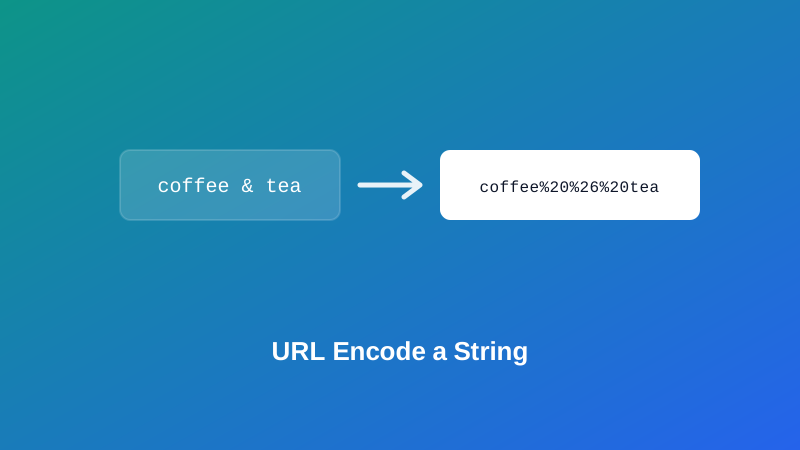
You build a link with a search term in it — something ordinary, like coffee & tea — and the page that opens only searches for coffee. The rest just vanished, no error, no warning. That's not a bug in whatever you're using. It's a URL reading your ampersand as its own punctuation, not as part of the word you meant to search for, and it's exactly the kind of thing URL encoding exists to prevent.
This guide covers what percent-encoding actually does, why a URL can't just contain any character you throw at it, and — since this is the part almost every other explanation skips — the real difference between the two encoding modes you'll find on a proper URL encoder, and which one actually applies to what you're doing.
What URL Encoding (Percent-Encoding) Actually Is
A URL is only guaranteed to work reliably with a fairly small set of characters: letters, digits, and a handful of punctuation marks. Anything outside that set — a space, an accented letter, an emoji, or a character that already has a job to do in the URL's own structure — has to be represented differently, or it risks being misread or simply dropped.
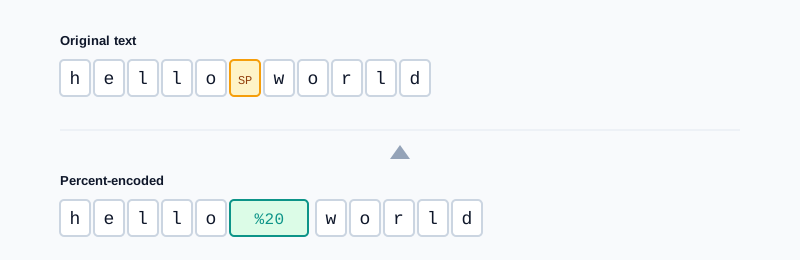
Percent-encoding solves this by replacing a character with a % followed by its two-digit hexadecimal byte value. A space becomes %20. An ampersand becomes %26. A forward slash becomes %2F. It's completely mechanical and fully reversible — decode it, and you get the exact original character back.
My PDF's URL Encoder and URL Decoder handle both directions of this, entirely in your browser.
Why Some Characters Need Encoding and Others Don't
Characters fall into two rough groups. Unreserved characters — letters, digits, and a few symbols like -, _, . and ~ — are always safe and never need encoding. Reserved characters — things like : / ? # & = + — are different: they're safe in a URL generally, but only because they're doing a specific structural job. A ? marks where the query string begins. An & separates one query parameter from the next. An = separates a parameter's name from its value.
That's the actual source of the broken-link problem from the intro. The ampersand in coffee & tea isn't invalid — it's just being read as URL syntax instead of as a character inside your search term, because nothing told the URL it should be treated as plain text there.
Component Encoding vs. Full URL Encoding
This is the distinction most quick explanations skip entirely, and it's the one that actually determines whether your encoded result works or quietly breaks something.
Component encoding escapes almost everything that isn't a plain letter, digit, or one of a small handful of always-safe symbols — including the structural characters like &, =, ? and /. Use this when you're encoding a single value that's going to be placed inside a URL, such as one query parameter — because if that value happens to contain an & or = of its own, those need to be neutralized so they don't get mistaken for URL structure.
Full URL encoding is more conservative. It leaves the structural characters (: / ? # & and friends) alone, since they're needed for the URL to actually function, and only encodes things that are never valid anywhere in a URL — spaces, non-ASCII characters, and a few others. Use this when you already have a complete URL and just need to make it transmittable or safe to paste, without breaking the structure it already has.
| Component encoding | Full URL encoding | |
|---|---|---|
Encodes &, =, ?, / | Yes | No — left intact |
| Use it on | One value going into a query string | An entire, already-structured URL |
| Example input | coffee & tea | https://example.com/search?q=coffee tea |
| Example output | coffee%20%26%20tea | https://example.com/search?q=coffee%20tea |
URL Encoder offers both as a simple dropdown — "Encode special characters (component)" or "Encode full URL" — so you're choosing deliberately instead of guessing.
How to URL Encode Text, Step by Step
Step 1: Open the URL Encoder
Go to My PDF's URL Encoder. No installation or account required.
Step 2: Paste Your Text or URL
The field accepts either a short value or a complete link — the result updates instantly as you type.
Step 3: Choose the Correct Mode
Select "component" if you're encoding a single value for a query parameter, or "full URL" if you're encoding an entire link that already has its own structure.
Step 4: Copy the Result
The encoded output is ready to paste directly into whatever you're building — a link, an API call, a config value.
How to Decode a URL-Encoded String
Step 1: Open the URL Decoder
Go to My PDF's URL Decoder.
Step 2: Paste the Encoded String
This works well on a whole query string copied straight from a browser's address bar, not just a single value.
Step 3: Match the Mode to How It Was Encoded
Use the same mode — component or full — that was used to encode it originally, then read the plain-text result.
Practical Examples
Building a search link with a value that contains special characters. You want to link directly to search results for coffee & tea. Encode just that value with component mode — coffee%20%26%20tea — then drop it into ?q=coffee%20%26%20tea. The ampersand inside your search term no longer gets confused with the one separating query parameters.
Sharing a whole URL that has spaces or unusual characters in it. A link like https://example.com/files/Q1 Report.pdf isn't safe to paste or click as-is. Run the entire thing through full URL encoding, and only the space gets touched — https://example.com/files/Q1%20Report.pdf — while the slashes, colon and structure stay exactly as they need to be to keep working.
Understanding a link you didn't build yourself. You've been sent a long, unreadable tracking or redirect URL full of %3D and %26 sequences, and you want to know what it's actually carrying before clicking it. Paste it into URL Decoder to see the plain-text version of every parameter it contains.
Downloading a file with spaces in its name. This one shows up constantly without anyone noticing why: rename a file to something like Quarterly Report Final.pdf, and the download link a browser generates for it often shows as .../Quarterly%20Report%20Final.pdf. That's the browser applying exactly this kind of encoding automatically, so the link stays valid — the same principle at work behind the scenes any time you download a document, including a file freshly produced by a tool like Merge PDF.
Common Mistakes When URL Encoding
Using full-URL mode on a single value. If the value itself contains an & or =, full mode won't touch them — they'll still be read as URL structure, and the value ends up truncated or split apart exactly like the broken-search example from the intro.
Using component mode on an entire URL. This encodes the slashes, the ?, and the & characters that the URL actually needs to function, turning https://example.com/page?id=5 into an unusable string of percent signs instead of a working link.
Double-encoding an already-encoded string. Running hello%20world through the encoder a second time produces hello%2520world, since the % from the first pass gets encoded too. If you see %25 anywhere in a result, that's usually the tell.
Confusing + with %20. Both can represent a space, but they come from different conventions — %20 is standard percent-encoding, while + is a legacy convention specific to form submissions in query strings. Mixing them up in the wrong context can produce a literal plus sign where a space was intended.
Assuming decoding always works. A string that was never actually encoded, or one that was cut off mid-sequence, won't decode cleanly — the decoder here reports that clearly instead of silently guessing.
Tips & Best Practices
- Default to component encoding for individual values, and reach for full encoding only when you're handling a complete, already-structured link.
- Watch for
%25in a result — it usually means something got encoded twice by mistake. - Build query strings by encoding each value separately, then assembling the full string around them — don't try to encode the whole thing with component mode at once.
- Round-trip test when you're unsure. Encode, then decode the result, and confirm you get back exactly what you started with.
- Decode a suspicious or unfamiliar link before clicking it, especially one that's unusually long or full of percent signs, so you know what it's actually pointing to.
Key Takeaways
- Percent-encoding replaces unsafe or structurally significant characters with a
%and a two-digit hex code, so a URL keeps working reliably everywhere it's used. - Component encoding escapes structural characters like
&and=, making it the right choice for a single value; full URL encoding preserves them, making it right for an entire link. - Using the wrong mode is the most common source of a "broken" encoded link — check which one you actually need before encoding.
- Watch for
%25in a result, since it's usually a sign of accidental double-encoding. - Both tools run entirely in your browser, so nothing you paste in is ever uploaded anywhere.
Related Reading
If you're weighing URL encoding against a different kind of text conversion, how to encode and decode Base64 covers a related but fundamentally different tool — one reformats data for safe transport inside things like URLs and JSON fields, the other makes specific characters safe within a URL's own structure. For more guides like this one, browse the full blog or the complete tools directory. For the formal technical specification behind reserved and unreserved URL characters, see RFC 3986 or Wikipedia's entry on percent-encoding.
Got a value or a link to encode right now? Open the URL Encoder and get a working result in seconds.
Comments
Comments aren't open on the blog yet. In the meantime, share this article using the buttons above, or reach us directly at contact@mypdf.tech.