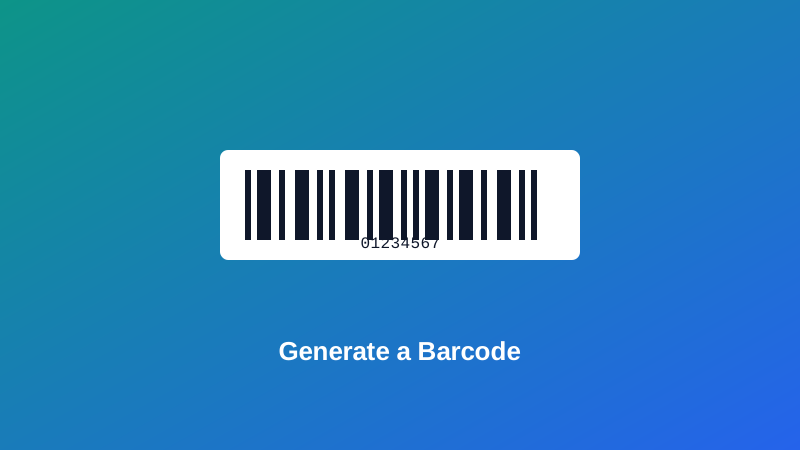
Search "barcode generator," and it's easy to assume every result produces the same kind of code — something like what's printed on a can of soup at a grocery store, ready to scan at any checkout in the world. It doesn't quite work that way. There are several different barcode formats, built for different jobs, and knowing which one you're actually generating matters a lot more than most quick tutorials let on.
This guide covers exactly what format this tool produces, what it's genuinely good for, and — just as importantly — when you need something else entirely. Getting this right before printing a batch of labels saves a wasted print run later.
What Kind of Barcode This Tool Actually Generates
My PDF's Barcode Generator produces a format called Interleaved 2 of 5, usually shortened to ITF. It's a numeric-only barcode — digits from 0 to 9 only, no letters, no symbols — built from a series of black bars and white spaces of two different widths.
The "interleaved" part of the name describes exactly how it works: digits are encoded two at a time. The first digit of each pair is represented by the black bars, and the second digit of the same pair is represented by the white spaces sitting between them, woven together into one repeating unit rather than laid out one digit after another. Each individual digit's pattern uses five bars or spaces, where exactly two are wide and three are narrow — which is where "2 of 5" comes from.
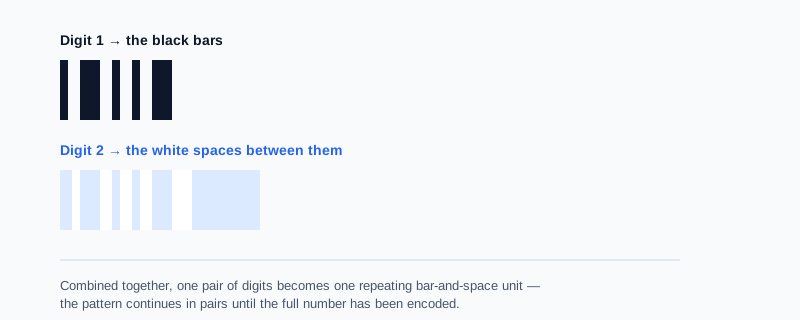
Because digits are encoded in pairs, the format requires an even number of digits to work. If you enter an odd count, the tool automatically adds a leading zero to make it even — worth knowing in advance, since it shows up in the human-readable text printed under the bars.
Why This Isn't the Same as a Retail Product Barcode
This is the part worth being upfront about, since assuming otherwise leads straight to a barcode that won't do what you expected.
The barcode on a retail product — a UPC-A or EAN-13 code — is a different format entirely, tied to a registered number assigned through GS1, the organization that manages product barcoding globally. Those formats include a built-in check digit, a fixed length, and a number that's registered to a specific company and product, so that any point-of-sale scanner anywhere recognizes it and pulls up the correct item. You can't generate a genuinely usable retail barcode just by typing digits into any barcode tool — it has to correspond to an actual registered product number.
ITF barcodes serve a different, entirely legitimate purpose. They're common in shipping and logistics — cartons, distribution center tracking, ITF-14 specifically for grouped shipping units — along with internal systems like warehouse inventory, library asset tags, and any situation where you control both ends of the process: you generate the number, and you're the one scanning it back later with your own system.
How to Generate a Barcode, Step by Step
Step 1: Open the Barcode Generator
Go to My PDF's Barcode Generator. No installation or account required.
Step 2: Enter Your Digits
Type the numeric code you need — a tracking number, an internal inventory ID, an asset tag. Letters and symbols aren't supported; this format is digits only.
Step 3: Choose a Bar Width
Pick Thin, Medium, or Thick, depending on how the barcode will actually be printed and scanned — more on choosing correctly below.
Step 4: Download the Barcode
Save the result as a PNG, with the digits printed clearly underneath the bars so the code stays human-readable even without a scanner handy.
Practical Examples
Tracking inventory in a small warehouse or storeroom. Assign each item or shelf location a numeric ID, generate a barcode for each, and print them onto labels for a system where you control both the generation and the scanning.
Tagging equipment or assets internally. A numbered asset tag — for a laptop, a piece of lab equipment, a library book — works well with a self-contained numeric system like this, since nothing needs to match an external product registry.
Building a demonstration for a class or training session. Explaining how barcodes actually encode data is a lot clearer with a real generated example in hand than with a diagram alone.
Creating an internal shipping or tracking label. A numeric tracking code generated and scanned entirely within your own process — not one that needs to interoperate with a carrier's official system — is a natural fit for this format.
Common Mistakes When Generating a Barcode
Assuming it produces a scannable retail product code. As covered above, retail barcodes need a registered number from GS1. A number you made up yourself, in any format, won't function as a real product barcode at a store checkout.
Entering letters or symbols. This format is strictly numeric — the tool rejects anything that isn't a digit with a clear error, rather than silently dropping characters.
Printing it too small for the scanner being used. A thin bar-width setting shrunk down further on a small label can become unreliable for an older or lower-quality scanner. Match the setting to your actual print size and equipment, and test before committing to a full batch.
Not noticing the automatic leading zero. If you enter an odd number of digits, a zero gets added at the front automatically, since this format requires pairs. Check the printed digits under the bars if your system expects an exact match to what you originally typed.
Skipping a test scan. Exactly like any other barcode or QR code, print one label first and scan it with the actual equipment it needs to work with before printing a larger batch.
Barcode vs. QR Code: Which One Do You Actually Need
These solve genuinely different problems, and picking the wrong one is an easy mistake to make before you've thought about what you're actually encoding:
| Barcode (this tool) | QR Code | |
|---|---|---|
| What it stores | Digits only | Text, URLs, Wi-Fi credentials, and more |
| Typical use | Internal tracking numbers, asset tags, shipping labels | Links, contact info, anything beyond plain numbers |
| Scanning equipment | Dedicated barcode scanners, most phone camera apps | Any modern phone camera |
If what you're actually trying to encode is a website link, a message, or anything beyond a plain number, QR Code Generator is the right tool instead — and if you need to read one back from an image rather than scan it live, QR Code Reader covers that separately.
Tips & Best Practices
- Match bar width to your printer and scanner. Thicker bars are more forgiving on lower-quality equipment; thinner bars fit smaller labels but need a cleaner print.
- Test-scan before a full print run. Print one label, scan it with the actual device or scanner it's meant for, and confirm the result before committing to a larger batch.
- Keep a clear margin around the barcode. Crowding it right up against other label text or graphics can interfere with a scanner locking onto the pattern.
- Use QR Code Generator instead if you need to encode anything beyond digits. This format is numeric-only by design.
- Get a real GS1-registered number for anything sold at retail. No generator can substitute for an officially registered product barcode.
Key Takeaways
- This tool generates Interleaved 2 of 5 (ITF) barcodes — a numeric-only format, not the same as a retail UPC or EAN product code.
- ITF is well suited to internal tracking, asset tags, and shipping labels where you control both the generation and the scanning.
- An odd number of entered digits gets an automatic leading zero, since the format encodes digits in pairs.
- If you need to encode anything beyond plain digits — a link, a message, contact details — QR Code Generator is the right tool instead.
- Always test-scan a printed barcode with your actual equipment before committing to a large print run.
Related Reading
If what you actually need to encode is a link or message rather than a tracking number, how to create a QR code for free covers that tool and the static-versus-dynamic distinction worth knowing first. If you need to read a code back from an image instead of scanning it live, how to scan a QR code from an image walks through that process. For more guides like this one, browse the full blog or the complete tools directory. For a deeper technical look at how this barcode format encodes data, see Wikipedia's entry on Interleaved 2 of 5.
Got a tracking number or asset ID to turn into a barcode? Open the Barcode Generator and download yours in seconds.

Comments
Comments aren't open on the blog yet. In the meantime, share this article using the buttons above, or reach us directly at contact@mypdf.tech.