You right-click, choose "view source," and instead of readable markup you get one dense, unbroken line — every tag, every attribute, every embedded script crammed together with no spacing at all. Or you've inherited a page where three different people edited the HTML over the years, each with their own idea of indentation. Either way, you need it readable again, and doing that by hand risks something worse than wasted time: accidentally breaking a script tag buried in the middle of it.
This guide covers how to reformat messy or minified HTML back into something you can actually read and edit, and the specific engineering detail that keeps your embedded JavaScript, CSS, and preformatted content exactly as you wrote it, no matter how the rest of the page gets reindented.
What This Tool Actually Does
My PDF's HTML Formatter takes HTML in any state — one unbroken line, wildly inconsistent indentation, a mix of both — and rebuilds it with a new line for each element and indentation that reflects how deeply each tag is nested, using whatever indent size you choose.
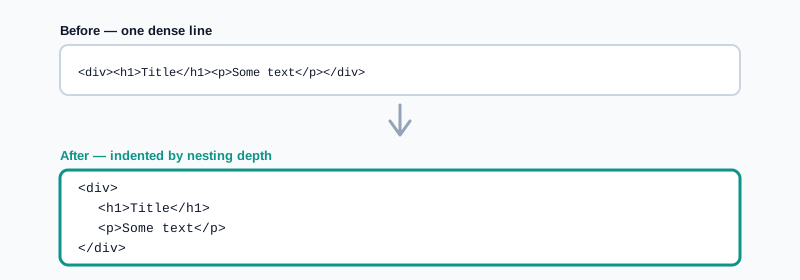
Paste in a squished export from a page builder, and you get back something you can actually scan, edit, and understand at a glance — without retyping a single character by hand.
The One Detail That Actually Matters: Script, Style, Pre and Textarea Are Left Alone
This is worth understanding before anything else, because it's the difference between a formatter that's safe to use on a real page and one that quietly breaks things.
Before this tool touches any indentation at all, it first sets aside the complete contents of every <script>, <style>, <pre>, and <textarea> element — exactly as written, untouched — and reformats only what's left. Once the surrounding HTML has been reindented, those blocks get put back in place precisely as they were, character for character.
A formatter that doesn't account for this can silently mangle embedded code. Knowing this one works this way is exactly what makes it safe to run on a real page rather than just a markup snippet.
How Indentation Is Actually Decided
Understanding the logic makes the output make sense, rather than feeling arbitrary. An opening tag increases the indent level for whatever comes after it; a closing tag decreases the indent before it's printed. A handful of specific cases are treated as exceptions and don't increase indentation at all:
- Void elements — tags like
<br>,<img>,<input>, and<hr>that have no closing tag to begin with. - Self-closing tags, written with a trailing
/>. - Comments and the DOCTYPE declaration.
- A tag whose opening, content, and closing all appear together on one line — something like
<title>My Page</title>— since it's already fully self-contained and doesn't need to be split across multiple lines.
That's why the output doesn't needlessly nest every simple, single-line element deeper and deeper — only genuine parent-child relationships between block-level tags actually add a level of indentation.
How to Format HTML, Step by Step
Step 1: Open the HTML Formatter
Go to My PDF's HTML Formatter. No installation or account required.
Step 2: Paste Your HTML
Whether it's a single minified line or just inconsistently indented, paste it in as-is.
Step 3: Choose an Indent Size
Set how many spaces each nesting level should use, matching your project's existing convention.
Step 4: Copy or Download the Result
The formatted output updates live and is ready to paste directly into your codebase.
Practical Examples
Reading a page's source pulled from "view source." Many sites ship minified HTML — one long, unbroken line. Paste it into the formatter to see the actual structure, which makes it far easier to understand how a page you're studying was actually built.
Cleaning up inconsistent markup before a code review. A file edited by several people over time often has mismatched indentation scattered throughout. Formatting it first means a diff shows only genuine content changes, not whitespace noise.
Reformatting a snippet exported from a page builder or CMS. Visual builders frequently export dense, single-line HTML. Running it through the formatter turns it into something you can actually paste into a hand-coded template and continue working with.
Confirming an embedded script survives formatting untouched. If you're not sure whether a formatter is safe to use on a page with real JavaScript in it, format a test file with a <script> block and confirm the code inside comes back exactly as written — a quick way to build confidence before using it on something that matters.
What This Tool Can't Do
Worth knowing the scope before relying on it for something specific:
- It doesn't validate your HTML. It reformats whatever tag structure it finds — a genuinely broken document, like one with a missing closing tag, won't be corrected, since this is a formatter, not a linter.
- It doesn't reformat the protected blocks. Content inside
<script>,<style>,<pre>, and<textarea>is deliberately left untouched, by design, not as an oversight. - It doesn't minify. This is the opposite operation — it makes HTML more readable, not smaller. If you need to shrink a file's size instead, that's a different kind of tool entirely.
Common Mistakes When Formatting HTML
Expecting broken HTML to get fixed, not just reformatted. A missing closing tag or malformed structure produces odd-looking output built around whatever's actually there — it isn't corrected automatically, since this isn't a validator.
Assuming embedded CSS or JavaScript gets reindented too. If a <script> or <style> block's internal formatting looks unchanged after running the tool, that's the protection behavior working correctly, not a bug.
Expecting a <pre> block's whitespace to change. That whitespace is meaningful by design and is deliberately left exactly as written.
Not double-checking a very large, deeply nested document. Extremely deep nesting can still look busy no matter how consistently it's indented — sometimes the better fix is breaking an enormous template into smaller files rather than just reformatting one huge one.
Tips & Best Practices
- Match your indent size to your project's existing style guide for a result that fits cleanly into the rest of your codebase.
- Trust that script, style, pre, and textarea content survives untouched — that's intentional, not a limitation to work around.
- Pair with CSS Formatter and JavaScript Minifier when cleaning up a full front-end project's files together.
- Reformat before a code review, so the diff reflects genuine changes instead of whitespace differences.
- Use a linter or your browser's dev tools if you suspect the HTML itself is broken, not just messy — this tool reformats structure, it doesn't validate it.
Key Takeaways
- The formatter rebuilds messy or minified HTML into a clean, consistently indented structure based on tag nesting.
- Script, style, pre, and textarea content is extracted before reformatting and restored exactly as written — a deliberate safeguard, not a limitation.
- Void elements, self-closing tags, comments, the DOCTYPE, and single-line self-contained tags don't add extra indentation.
- This tool formats structure — it doesn't validate correctness or minify for production, both of which are different jobs entirely.
- Reformatting messy markup before a code review keeps a diff focused on genuine changes instead of whitespace noise.
Related Reading
If you're cleaning up a full front-end project's assets, how to format and minify CSS covers the equivalent process for stylesheets. For more guides like this one, browse the full blog or the complete tools directory. For a full reference on which HTML elements never get a closing tag, see MDN's glossary entry on void elements.
Got a squished or messy page source to clean up? Open the HTML Formatter and get readable markup in seconds.
Comments
Comments aren't open on the blog yet. In the meantime, share this article using the buttons above, or reach us directly at contact@mypdf.tech.