You open a scanned contract, and there it is — page four, turned a quarter-turn on its side, forcing you to tilt your head or your whole laptop just to read it. Rotating it in your PDF viewer fixes the view for exactly as long as that window stays open. Close the file, reopen it, send it to a colleague, and it's sideways again. That's the part that trips people up: viewer rotation and permanent rotation are two different things, and only one of them actually fixes the file.
This guide covers how to rotate a PDF so the fix sticks for good, how to figure out which direction to rotate when you can't see a live preview first, and what to do with a document where some pages are portrait and others are landscape — a situation that turns out to be more common than you'd think.
Why PDF Pages End Up Sideways in the First Place
It's rarely a mistake in the document itself — it's almost always something that happened during scanning, photographing, or exporting:
- A scanner fed a mixed stack. Office scanners with automatic document feeders assume every page goes in the same way. Drop in a stack with one landscape page mixed among portrait ones, and that one page comes out turned.
- A page was photographed sideways. Phone cameras save the image in whatever orientation you held the phone, and converting it straight to PDF can carry that rotation along.
- A source document was already landscape. Spreadsheets, wide tables, and certificates are often designed sideways on purpose, and combining them with portrait pages in one file makes the whole thing look inconsistent even though nothing is technically wrong.
- An export set the wrong page orientation. Some office software defaults to portrait regardless of what the original slide or sheet was designed as, twisting the content to fit.
None of these are anything to worry about — they're just what happens when pages come from different sources or devices. The fix is quick either way.
Viewer Rotation vs. Permanent Rotation
This is the single most common point of confusion, so it's worth being precise about it. Most PDF readers — Adobe Reader, Preview on a Mac, the built-in viewer in Chrome or Edge — let you rotate a page's view with a toolbar button. That rotation lives inside your current viewing session only. It's not written into the file, so the moment you close and reopen it, or someone else opens it on their own device, it's back to sideways.
Permanent rotation is different: it changes the actual page data stored inside the PDF, so the orientation is baked in. Anyone who opens the file afterward — in any viewer, on any device — sees it the right way up, automatically.
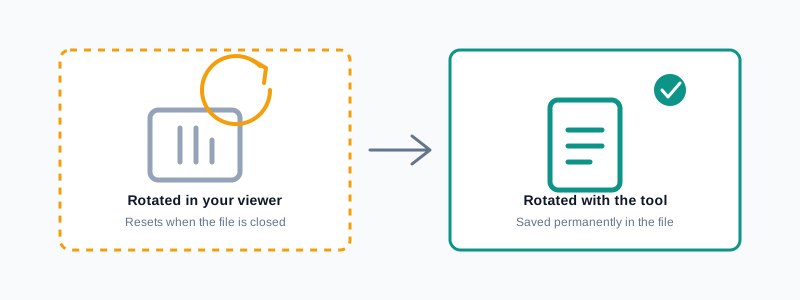
My PDF's Rotate PDF tool does the second kind. Your file is uploaded, the correct orientation is written directly into the page data, and the result you download is fixed for anyone who opens it from that point on — no toolbar rotation required on their end.
How to Rotate a PDF, Step by Step
Step 1: Open the Rotate PDF Tool
Go to My PDF's Rotate PDF tool. Nothing to install and no account needed — the upload area is right there on the page.
Step 2: Upload Your PDF
Drag your file into the upload area, or click to browse and select it. Files up to 50 MB are accepted, and there's no separate limit on how many pages a document can have.
Step 3: Choose the Rotation Angle
Pick one of three options: 90° (quarter turn clockwise), 180° (flip upside down), or 270° (quarter turn counter-clockwise). If you're not sure which of 90° or 270° is correct, the next section covers a quick, reliable way to work it out.
Step 4: Optionally Target Specific Pages
By default, the rotation applies to every page in the document. If only some pages are sideways, type their numbers or ranges into the "Pages" field instead — for example, 4 for a single page, or 4,9-11 for page four plus a run of pages nine through eleven. Leave this field blank to rotate the whole file.
Step 5: Click "Rotate PDF" and Download
The file is processed in seconds regardless of length, and you'll get back a new file with the correction applied. Your original upload isn't altered — the rotated version is a separate download.
Picking the Right Direction Without a Preview
Since the tool doesn't show a live thumbnail before you commit, working out 90° versus 270° from memory can feel like a coin flip. Here's a trick that removes the guesswork: open the file in any ordinary PDF viewer first, look at the sideways page, and notice which way you naturally tilt your head to read it comfortably.
- If you tilt your head to the right (clockwise) to read it — the content needs to turn clockwise to stand upright. Choose 90°.
- If you tilt your head to the left (counter-clockwise) to read it — the content needs to turn the other way. Choose 270°.
- If the page only makes sense flipped completely over, with no tilt fixing it, that's a straightforward 180°.
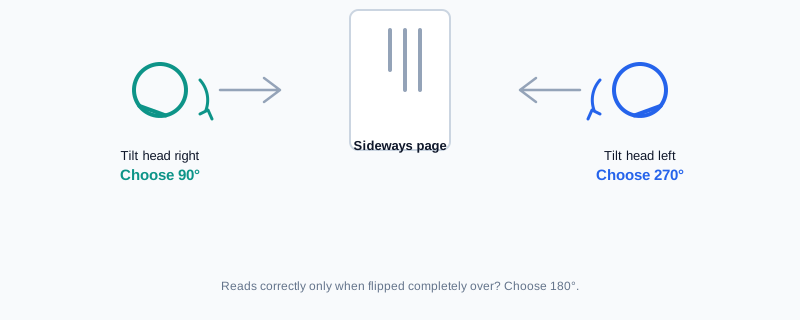
A worked example: say a scanned invoice has its text running from bottom to top on the page, so you'd tip your head to the left to read it normally. That corresponds to the second case above — the page needs a 270° turn to sit upright. If you'd tipped your head right instead, it'd be 90°.
It's genuinely a small trick, but it turns a guess into a decision, and it works regardless of how the page ended up sideways to begin with.
Rotating Only Specific Pages
A document doesn't need to be uniformly sideways for the page-range option to be useful. It's common for just one or two pages — a single photographed exhibit stapled into an otherwise clean contract, or one landscape chart dropped into a portrait report — to need a fix while the rest of the file is already correct.
Type the specific page number, or a comma-separated list of numbers and ranges, into the Pages field, and only those pages are touched. Everything else in the document — content, order, and orientation — stays exactly as it was.
A Practical Example: Fixing a Scan With Mixed Page Orientations
Say you've got a 12-page scanned intake packet. Pages 1–8 came out fine, page 9 is a landscape table that needs a 90° turn, and pages 10–12 were fed into the scanner upside down and need a full 180°. Two different pages, two different corrections — more than one rotation angle in a single file.
Since each pass through the tool applies one angle at a time, this takes two quick rounds instead of one:
- Upload the original 12-page file to Rotate PDF.
- Set the angle to 90°, target page
9only, and download the result. - Upload that same downloaded file back into the tool a second time.
- Set the angle to 180°, target pages
10-12, and download the final version.
Because rotating doesn't reorder or remove anything, page 9 is still page 9 and pages 10 through 12 are still exactly where you'd expect them in the second pass — there's no renumbering to account for between rounds. The end result is a 12-page document where every page reads correctly, produced in two short passes rather than one that isn't possible.
Common Mistakes When Rotating a PDF
Rotating in a viewer and assuming it's fixed. The rotate button in Adobe Reader, Preview, or a browser's built-in viewer only changes what you see right now. Send that file to someone else, or reopen it later, and it's sideways again. Use a rotation tool that writes the change into the file itself.
Guessing the direction and not checking the result. A wrong guess between 90° and 270° leaves a page upside down rather than fixed. It's a fast mistake to catch — open the downloaded file and glance at the affected page before moving on.
Rotating the whole document when only one page needs it. Leaving the Pages field blank turns every page, including ones that were already correct. If just one section is affected, target it specifically.
Trying to apply two different angles in a single pass. The tool applies one angle per run. A document needing different corrections on different pages needs two (or more) short passes, as shown above — not one pass with mismatched settings.
Forgetting a protected PDF needs unlocking first. An encrypted file can't be rotated until its password is removed with Unlock PDF.
Mistaking rotation for straightening a crooked scan. Rotation corrects orientation in 90-degree turns — it fixes sideways or upside-down pages, not a page that's a few degrees crooked from an uneven scan. A slightly skewed page is usually best fixed by rescanning it more carefully.
Rotate vs. Organize Pages vs. Crop
These three get reached for in similar situations — something about a page "looks wrong" — but they solve different problems entirely:
| Tool | What it changes | Use it when |
|---|---|---|
| Rotate PDF | Turns page orientation by 90°, 180° or 270° | A page displays sideways or upside down |
| Organize Pages | Changes the order pages appear in | The content and orientation are fine, but the sequence isn't |
| Crop PDF | Trims an even margin from every page | A page has excess white space or a scanner border |
A scanned packet with a jumbled order, a wide border, and one sideways page needs all three — rotate the sideways page first, then crop the borders, then reorder with Organize Pages. Doing rotation first means the rest of the workflow deals with a document that's already displaying the right way up.
Tips & Best Practices
- Check the affected page after every rotation, especially when you're not 100% sure of the direction — it costs seconds and saves a second round-trip later.
- Target specific pages instead of the whole file whenever only part of a document is affected, so pages that were already correct stay untouched.
- Use the head-tilt trick to turn a 90°-versus-270° guess into a quick, reliable decision.
- Handle mixed-orientation documents in separate passes, one angle and page range at a time, rather than trying to force one setting to fix everything at once.
- Unlock protected files before rotating. Encryption has to come off first, using the current password.
- Rotate before cropping or reordering in a multi-step cleanup, so later steps work against a document that's already oriented correctly.
Key Takeaways
- Rotating in a PDF viewer only changes what you see — it resets the moment the file is closed. A dedicated rotation tool writes the fix permanently into the file.
- Three angles are available — 90°, 180° and 270° — and you can apply the rotation to the whole document or to specific pages only.
- No live preview means picking a direction can feel like guesswork; use the head-tilt trick to turn it into a quick, reliable call instead.
- A document with pages needing different corrections takes two or more short passes, one angle and page range at a time — not one pass with mismatched settings.
- Rotation never reorders or removes pages, so page numbers stay stable even across multiple passes on the same file.
Related Reading
For the full set of page-level tools — splitting, reordering, extracting and rotating together — see the complete guide to organizing PDF pages. If your document also has wide scanner borders to deal with, how to crop a PDF covers that next step. For more guides like this one, browse the full blog or the complete tools directory. For background on how page orientation is stored in the format itself, see Wikipedia's entry on PDF.
Got a page turned the wrong way? Open the Rotate PDF tool and have it fixed for good in seconds.
Comments
Comments aren't open on the blog yet. In the meantime, share this article using the buttons above, or reach us directly at contact@mypdf.tech.