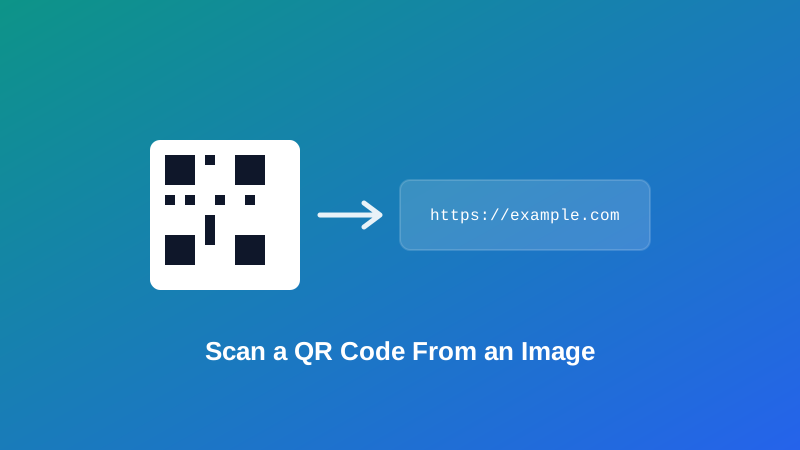
Someone emails you a QR code as an image, or you've got a screenshot of one from a chat, and your phone is in the other room. Pointing a camera at a screen to scan a screen is also just awkward — glare, reflection, and refocusing make it more fiddly than it should be for something this simple. What you actually want is to upload the image and get the decoded result back, without touching your phone at all.
This guide covers exactly that: reading a QR code directly from an image file at your desktop, the one browser detail that decides whether this actually works, and a few real situations — beyond just "I don't have my phone" — where reading a code this way is genuinely the better option.
What This Tool Actually Does
My PDF's QR Code Reader decodes a QR code from an image you upload — a screenshot, a photo, a scanned page — rather than through a live camera feed. You're not pointing anything at anything; you're handing over a picture that already contains the code, and getting back whatever text, link, or data was encoded in it.
Under the hood, it uses your browser's own native barcode-detection capability to find and read the pattern, running entirely on your device. Nothing about the image gets uploaded to a server to be processed elsewhere — the detection happens locally, the same way the QR generator on this site builds codes locally rather than through a remote service.
Why Read a QR Code From an Image Instead of Your Phone
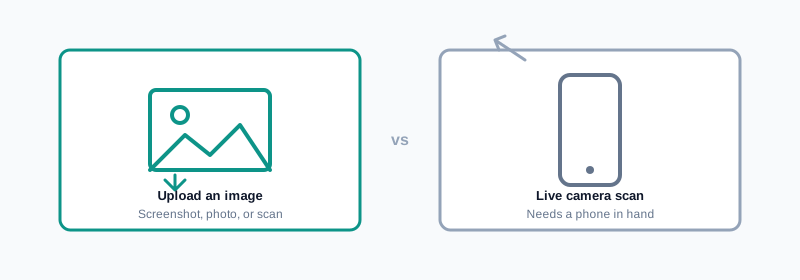
A phone camera is the obvious way to scan a QR code, and it's still the right tool most of the time. But there are specific situations where reading from an image at your desktop is genuinely the better option, not just a fallback:
- You're working entirely on desktop. A code arrived as an attachment or a screenshot, and reaching for a phone just to check what it says is a needless extra step.
- Screen-to-screen scanning is unreliable. Pointing a phone camera at a QR code displayed on a monitor often runs into glare, moiré patterns, or focus trouble that a direct image upload sidesteps entirely.
- You want to verify a code before it goes anywhere. If you've generated a QR code yourself and want to confirm it decodes correctly before printing a thousand copies, uploading the downloaded image back into a reader is a faster, more precise check than scanning it off a screen.
- You'd rather not open a link directly on your phone. For a QR code from an unfamiliar or public source — a poster, a flyer, packaging — decoding it first and reading the destination as plain text lets you evaluate it before tapping through to anything.
How to Scan a QR Code From an Image, Step by Step
Step 1: Open the QR Code Reader
Go to My PDF's QR Code Reader. No account or installation needed.
Step 2: Upload the Image
Choose the screenshot, photo, or scanned file that contains the QR code. It doesn't need to be cropped precisely — the tool locates the code within the image on its own.
Step 3: Read the Decoded Result
The content encoded in the QR code — a URL, a message, contact details, whatever it holds — appears as plain text almost instantly.
Step 4: Copy or Use the Result
Copy the decoded text to use however you need it, whether that's opening a link deliberately, saving contact details, or confirming a Wi-Fi password.
Practical Examples
Verifying a code before a print run. After generating a QR code with QR Code Generator, download it and run it straight back through the reader. If the decoded result matches exactly what you intended — the correct URL, the right Wi-Fi password — you've confirmed it before committing to printing dozens or hundreds of copies.
Reading a code sent in a chat or email. A colleague sends over a screenshot containing a QR code for a meeting link or a shared file. Upload it directly rather than trying to scan your own screen with your phone.
Checking a code that's part of a scanned document or PDF page. If a QR code appears on a scanned form or inside a PDF, a screenshot of just that portion of the page, uploaded here, decodes it directly. This is different from running the whole page through PDF to Text — that tool extracts written text from a document, not the content encoded inside an embedded image like a QR code.
Double-checking a code found in public before committing to it. A code on a poster or piece of packaging can be photographed and decoded here first, so you can read the actual destination as plain text before deciding whether to visit it on a device.
What This Tool Can and Can't Do
Worth knowing the actual scope before you rely on it for something specific:
- It reads from an uploaded image, not a live video feed. There's no real-time camera scanning here — you're always working from a still image that already contains the code.
- It's built for QR codes specifically, not traditional 1D barcodes like the kind found on retail packaging. If you need to generate that type of barcode, Barcode Generator is a separate tool built for that numeric format.
- It depends on your browser. Currently, that means Chrome or Edge — Safari and Firefox users will see a clear unsupported-browser message rather than a result.
- Very blurry, low-resolution, or heavily obscured images may not decode reliably. This isn't specific to this tool — any QR reader, app-based or otherwise, needs the grid pattern to be reasonably clear to work.
Common Mistakes When Reading a QR Code This Way
Assuming the tool is broken when it's actually a browser limitation. An unsupported-browser message means exactly that — try Chrome or Edge instead of concluding the image itself is the problem.
Uploading an overly tight crop of the code. QR codes need a small clear border (a "quiet zone") around the pattern to be detected reliably — a screenshot cropped right up against the edge of the code can interfere with that.
Uploading a heavily compressed or blurry image. A QR code is a fine grid pattern, and enough compression artifacting or blur can make individual modules hard to distinguish, which prevents a clean decode.
Expecting it to read other barcode formats. This tool is specifically built for QR codes — a traditional numeric barcode won't be picked up by it.
Not realizing an image with several QR codes returns all of them. If a photo happens to contain more than one code — a page with several, for instance — the result includes each one that was successfully detected, not just the first.
Tips & Best Practices
- Use a clear, reasonably sized image with the full code visible, including a bit of margin around it.
- Switch to Chrome or Edge if you get an unsupported-browser message rather than assuming something's wrong with your image.
- Reverse-check any code you generate yourself before a large print run, by decoding your own downloaded image here first.
- Decode a code from an unfamiliar source before opening it directly on a device, so you can read the destination as plain text first.
- Take a clean screenshot rather than photographing a screen, since screen glare and moiré patterns can make a photographed code harder to decode than one captured directly as an image file.
Key Takeaways
- This tool reads a QR code from an uploaded image, not a live camera — it's built for screenshots, photos, and scanned pages, not real-time scanning.
- It relies on your browser's native barcode-detection capability, currently supported in Chrome and Edge but not Safari or Firefox.
- Decoding happens entirely on your device — nothing about the image is uploaded to a server.
- It's a fast way to verify a QR code you've generated before printing it in bulk, and a safer way to check an unfamiliar code before opening it on a phone.
- It's built specifically for QR codes, not traditional numeric barcodes, and works best with a clear image that has a bit of margin around the code.
Related Reading
If you're generating QR codes rather than reading them, how to create a QR code for free covers the static-versus-dynamic distinction worth knowing before you print one. For more guides like this one, browse the full blog or the complete tools directory. For technical background on the browser capability this tool relies on, see MDN's documentation on the Barcode Detection API.
Got a QR code to read right now? Open the QR Code Reader and get the decoded result in seconds.

Comments
Comments aren't open on the blog yet. In the meantime, share this article using the buttons above, or reach us directly at contact@mypdf.tech.