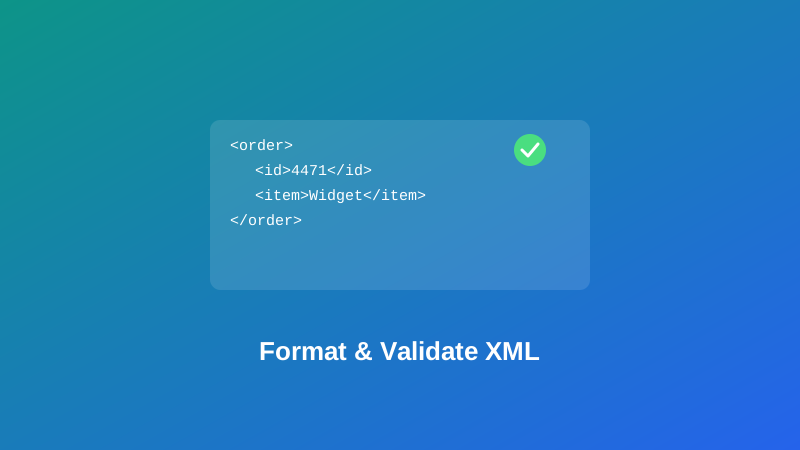
An API you're integrating with returns XML instead of JSON, and what lands in your terminal is one dense, unbroken line. Or a config file, an RSS feed, or an export from some older system needs a small edit, and the whole thing needs to actually be readable before you can safely touch it. Then, halfway through, something breaks — the file that "looked fine" turns out not to be, and the actual reason isn't obvious just by staring at it.
This guide covers how to reformat XML into something readable, what it actually means for XML to be "well-formed," and why one of these two tools will flatly refuse to touch broken input while the other exists specifically to tell you what's wrong with it.
What "Well-Formed" Actually Means for XML
This term gets used loosely, so it's worth being precise. Well-formed is a specific, checkable property: every tag has a matching closing tag, tags nest properly without overlapping, every attribute value is quoted, and there's exactly one root element containing everything else. A document either satisfies all of these rules or it doesn't — there's no partial credit.
This is where XML genuinely differs from HTML, and it catches people off guard if they're used to how forgiving browsers are with HTML. A browser will render a page with an unclosed <div> or a missing quote around an attribute without complaining much — it guesses at what you probably meant and moves on. XML parsers don't do that. A single unclosed tag anywhere in the document, even in the middle of an otherwise perfect file, makes the entire document fail to parse — not render slightly wrong, fail outright.
How This Tool Actually Checks Well-Formedness
Both My PDF's XML Formatter and XML Validator check this the same way: by handing your document to your browser's own built-in XML parser and checking whether it reports an error. This is the same real parsing engine browsers use anywhere XML actually gets processed — not a simplified approximation built specifically for this tool. If the parser says a document is well-formed, that's a genuine, standards-based result.
The Formatter Requires Valid XML — the Validator Doesn't Care Either Way
This is the part worth understanding clearly, because it's a real behavioral difference between the two tools, not just a cosmetic one.
XML Formatter checks your document's well-formedness first, and if it isn't well-formed, it refuses to format it at all — you'll get a message telling you the input doesn't look like well-formed XML, rather than a half-reformatted result built around broken structure. This is different from something like HTML Formatter on this site, which reformats whatever tag structure it finds regardless of whether it's technically correct, because HTML tolerates a much looser structure by nature.
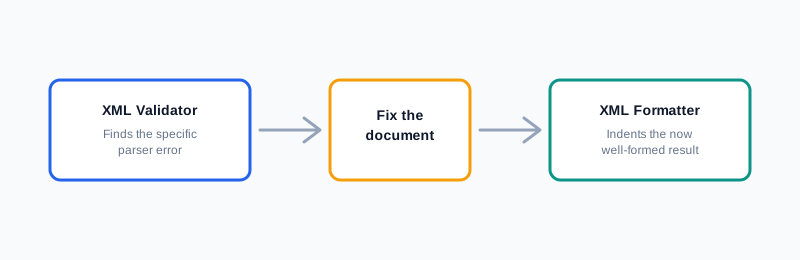
XML Validator exists specifically to answer the question the Formatter's blunt refusal doesn't: why isn't this well-formed? Paste broken XML in, and it surfaces the actual parser error message, which typically points at the specific problem — an unclosed tag, mismatched tag names, or similar.
How to Format XML, Step by Step
Step 1: Open the XML Formatter
Go to My PDF's XML Formatter. No installation or account needed.
Step 2: Paste Your XML
A single-line export, an inconsistently indented file, or anything in between works, as long as it's well-formed.
Step 3: Choose an Indent Size
Set how many spaces each level of nesting should use.
Step 4: Copy or Download the Result
The formatted output is ready to paste directly into your project.
How to Validate XML, Step by Step
Step 1: Open the XML Validator
Go to My PDF's XML Validator.
Step 2: Paste the XML in Question
The check runs instantly as you type.
Step 3: Read the Result
You'll see either a confirmation that the document is well-formed, or the actual parser error explaining what's wrong.
Practical Examples
Reading a minified API response. Some APIs, particularly older or SOAP-based ones, still return XML rather than JSON, and it often arrives as one unbroken line. Formatting it makes the actual structure of the response visible.
Debugging a broken RSS or Atom feed. If a feed generator is failing somewhere downstream, pasting the feed's raw XML into the Validator surfaces the specific parser error — an unclosed tag, an unescaped character — rather than leaving you to guess.
Cleaning up a legacy config file. Older build tools and applications frequently use XML for configuration. Formatting a squished or inconsistently indented config file makes it safe to actually read and edit by hand.
Confirming a manual edit didn't break anything. After hand-editing an XML file, running it through the Validator confirms it's still well-formed before feeding it back into whatever system consumes it — a fast sanity check that catches a stray typo before it becomes a bigger problem downstream.
Common Mistakes When Working With XML
Assuming XML that "looks fine" is automatically well-formed. A single unquoted attribute or a mismatched tag anywhere in a long document breaks the whole thing, and it isn't always obvious at a glance — this is exactly what the Validator's specific error message is for.
Expecting the Formatter to fix broken XML the way a more forgiving tool might. It won't attempt to reformat invalid structure — fix the underlying issue first, using the Validator to identify it, then format the corrected version.
Forgetting XML tag names are case-sensitive. Unlike HTML, <Item> and <item> are different tags entirely in XML. A closing tag that doesn't match the opening tag's exact case breaks well-formedness, even though it might look like a harmless style inconsistency.
Leaving attribute values unquoted or mixing quote styles. Every attribute value needs to be wrapped in quotes — missing or inconsistent quoting is one of the most common reasons a document fails to parse.
Assuming this checks against a schema. Well-formedness is purely a syntax check — it confirms the document follows XML's structural rules, not that it matches a specific expected set of elements or fields. That kind of check requires a separate schema validator (XSD or DTD), which is a different tool for a different job.
Tips & Best Practices
- Validate first if you're not certain your XML is clean, then format once it's confirmed well-formed.
- Remember tag names are case-sensitive — a mismatched case between an opening and closing tag is an easy, easy-to-miss mistake.
- Quote every attribute value consistently.
- Use a schema validator separately if you need to confirm a document matches a specific expected structure, not just that it's syntactically correct.
- Match your indent size to your project's convention when formatting for readability.
Key Takeaways
- Well-formed XML means every tag is properly closed and nested, every attribute is quoted, and there's exactly one root element — a strict, checkable syntax requirement with no partial credit.
- Both tools check well-formedness using your browser's real, built-in XML parser, not a simplified approximation.
- The Formatter refuses to format invalid XML outright; the Validator exists specifically to show you why a document isn't well-formed.
- XML tag names are case-sensitive, unlike HTML — a mismatched case between opening and closing tags is a common, easy-to-miss error.
- Well-formedness is a syntax check only — confirming a document matches a specific expected structure requires a separate schema validator.
Related Reading
If you're working with a different structured format, how to format and beautify JSON covers the equivalent readability problem for JSON, and how to format messy HTML covers the more forgiving markup language XML is often compared against. For more guides like this one, browse the full blog or the complete tools directory. For background on the format itself, see Wikipedia's entry on XML.
Got XML to clean up or check? Open the XML Formatter or XML Validator and get your result in seconds.
Comments
Comments aren't open on the blog yet. In the meantime, share this article using the buttons above, or reach us directly at contact@mypdf.tech.